
JSON to YAML Converter
Table of Contents
- Turn JSON object into reader-friendly YAML format with PicoToolkit
- How to use
- Common use cases
- Examples
- Tips & edge cases
- Related tools
- Reverse Conversion
- Works Best with Other PicoToolkit Converters
- FAQ
- Will this tool preserve data types when converting?
- What happens if my JSON is invalid?
- Can I convert the YAML back to JSON?
- Are there file size limits?
Turn JSON object into reader-friendly YAML format with PicoToolkit
Turn JSON object into reader-friendly YAML format with PicoToolkit
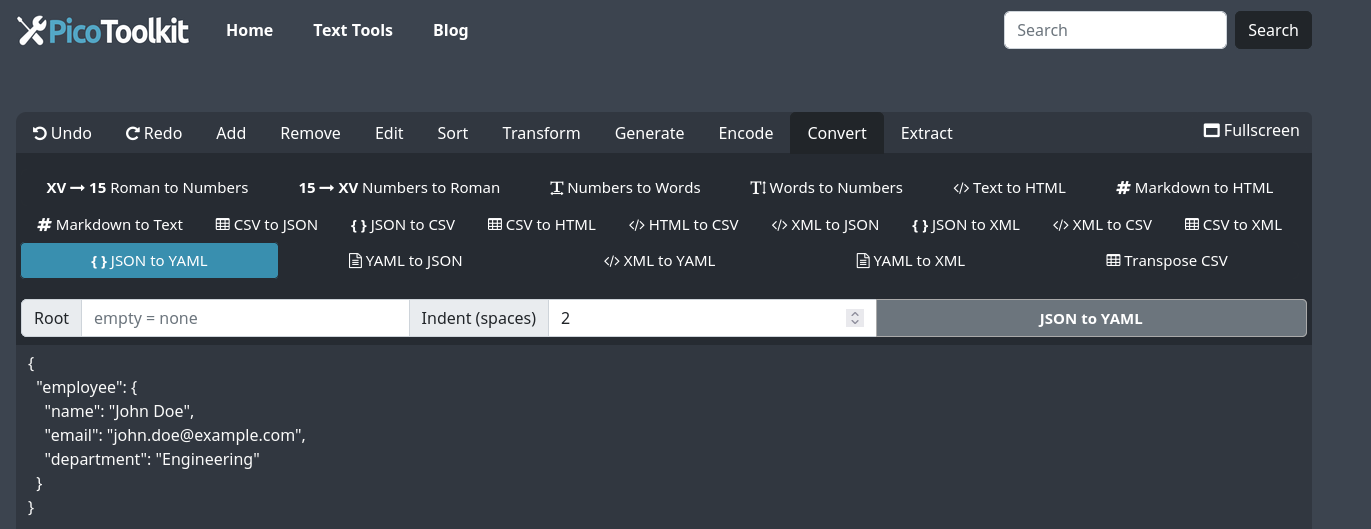
Convert JSON to readable YAML instantly. Paste JSON, optionally set a root element and indentation, then copy the clean YAML output. Fast, browser-based, and part of the PicoToolkit converters.
How to use
- Paste your JSON into the input area.
- Optional: set a root element. If provided, the whole converted YAML will be nested under that root; if left empty, top-level JSON properties remain top-level in YAML.
- Optional: set indentation (default is 2 spaces).
- Click Convert → copy or download the YAML output.
- Note: conversion runs in your browser and is limited by the browser's memory and file-handling capabilities.
Common use cases
- Prepare configuration files (CI/CD, application config) in YAML format.
- Generate Kubernetes manifests from JSON objects.
- Make JSON data human-editable for documentation or team handoffs.
- Quickly convert API responses or test data to YAML for tooling that requires YAML input.
Examples
1) Simple JSON → YAML (no root specified — level 1 properties remain level 1):
{
  "name": "acme",
  "enabled": true,
  "count": 3,
  "items": ["a","b","c"]
}
YAML output:
name: acme
enabled: true
count: 3
items:
  - a
  - b
  - c
2) JSON with a defined root element (output becomes nested under the root):
Assume root = "service"
Input JSON:
{
  "name": "acme",
  "enabled": true
}

YAML output (root = service):
service:
  name: acme
  enabled: true
3) Custom indentation
Default indentation is 2 spaces. You can set 4 spaces (or another supported indent) to match your project's style.
With 4-space indent:
service:
    name: acme
    enabled: true
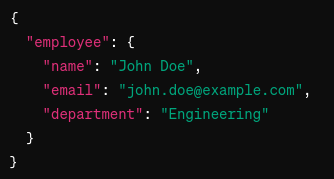
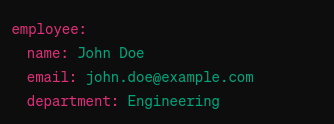
Additional visual example (keeps original screenshots):
Tips & edge cases
- Invalid JSON: the tool validates input JSON first. If conversion fails, check for missing commas, stray quotes, or trailing commas. Paste into a JSON validator if unsure.
- Duplicate keys: JSON objects with duplicate keys are ambiguous; browser parsers typically keep the last occurrence — avoid relying on duplicates.
- Large files: conversion happens in your browser. Very large JSON may fail due to browser memory limits — consider using a server tool or split the file if you hit limits.
- Comments: JSON does not support comments. If your input needs comments, add them after conversion in YAML (YAML supports comments).
- Data types: numbers, booleans, arrays and objects are preserved. Strings that look like numbers remain strings unless you edit them after conversion.
Related tools
- YAML to JSON — convert YAML back into JSON.
- JSON to CSV — turn JSON arrays into CSV/TSV for spreadsheets.
- XML to YAML — convert XML into YAML.
- JSON to XML — produce XML from JSON.
Reverse Conversion
Notably, the PicoToolkit suite includes a YAML to JSON converter, allowing users to easily revert their data back to JSON if needed. This flexibility ensures that users can work within the format most suitable for their current requirements without being locked into one format.
Works Best with Other PicoToolkit Converters
The JSON to YAML Converter is part of a comprehensive suite of conversion tools offered by PicoToolkit, including XML to YAML, XML to JSON, and JSON to CSV converters. This ecosystem of tools provides a robust solution for a wide range of data conversion needs, enhancing data interoperability and simplifying data management tasks.
FAQ
Will this tool preserve data types when converting?
Yes. Numbers, booleans, arrays and objects are preserved in the YAML output. Strings remain strings unless you manually edit them after conversion.
What happens if my JSON is invalid?
The converter validates JSON before conversion and will show an error for malformed input. Fix syntax errors (missing commas/quotes) or use an external JSON validator, then retry.
Can I convert the YAML back to JSON?
Yes. Use the reverse converter — YAML to JSON — or the YAML to JSON tool in PicoToolkit.
Are there file size limits?
Conversion runs locally in your browser and is limited by your browser's memory and processing capacity. If a file is too large, consider splitting it or using a server-side tool.