
JSON to CSV Converter
Table of Contents
Simplifying API Data Transformation with PicoToolkit
Convert JSON to CSV or TSV online
Quickly convert JSON into CSV or TSV for spreadsheets, databases, and imports. This PicoToolkit converter supports custom separators and works entirely in your browser — limited only by your device’s memory and browser.
How to use
- Open the tool and paste JSON or upload a .json file.
- From the menu, choose Convert -> JSON to CSV. An additional toolbar will appear with separator options. Then click the "JSON to CSV" button.
- Copy the output or download as a .csv/.tsv file and open in Excel, Google Sheets, or your import tool.
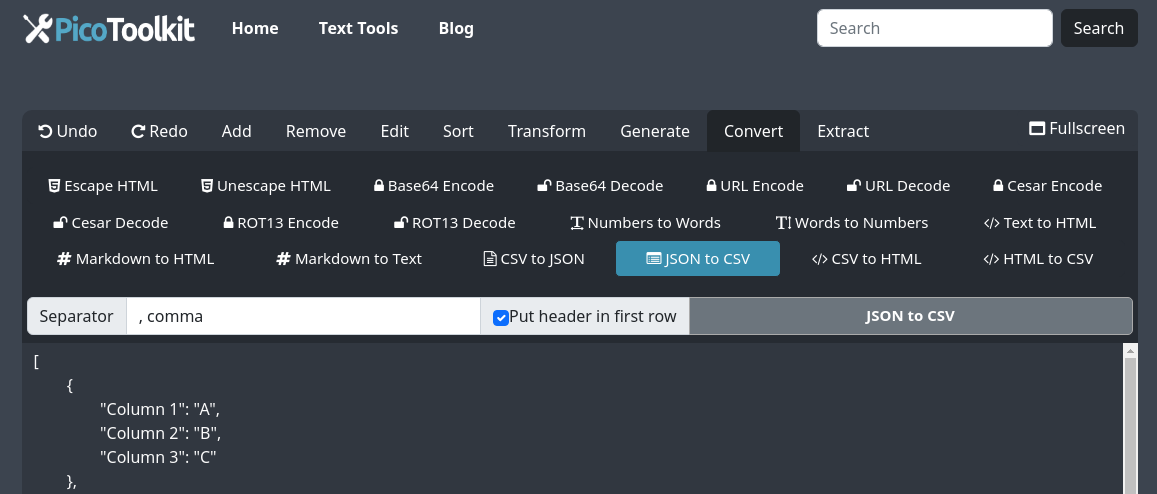
Supported formats & options
- Outputs: CSV (comma separated) and TSV (tab separated).
- Custom separators supported (comma, semicolon, pipe, tab, space) to match regional or tool requirements.
- Works with arrays of objects (the common API/export shape). Fields become columns; missing keys result in empty cells.
Handling nested JSON
Nested objects and arrays are common in API responses. Behavior varies by input shape, so try one of these approaches:
- If your JSON is already an array of flat objects — paste it directly and convert.
- If objects contain nested fields or arrays, pre-flatten them before converting (recommended). Example tools/commands to flatten before conversion are shown in the Examples section below.
- If you prefer interactive mapping, export a small sample first to check column layout, then apply the same transformation to the full file.
Browser limits & bulk processing
- This converter runs in your browser; practical limits depend on your device and browser memory. Very large files may fail or become slow. For massive datasets, use server-side ETL or split the file into smaller chunks.
- For bulk automated conversions, run a headless script or a server-side tool (jq, pandas, etc.) and use PicoToolkit for quick spot conversions or QA.
Examples (real-world)
- Simple API export → CSV
JSON input:
CSV result:[ {"id":1,"name":"Alice","email":"[email protected]"}, {"id":2,"name":"Bob","email":"[email protected]"} ]id,name,email 1,Alice,[email protected] 2,Bob,[email protected] - Nested object (flatten with jq)
Problem: API returns nested address object per user. Use jq to flatten before converting:
Then paste flat.json into the converter to get columns id,name,city,zip.# input.json [ {"id":1,"name":"Alice","address":{"city":"NY","zip":"10001"}}, {"id":2,"name":"Bob","address":{"city":"LA","zip":"90001"}} ] # flatten using jq (example) jq '[.[] | {id, name, city: .address.city, zip: .address.zip}]' input.json > flat.json - Logs or TSV for spreadsheets
If you need a tab-separated file for import, select the tab separator in the toolbar. Example TSV:timestamp\tlevel\tmessage 2023-10-01T12:00:00Z\tINFO\t"Service started"
Tips & edge cases
- Header order follows the first object’s keys. Reorder headers in a spreadsheet if needed.
- Missing keys produce empty cells. Normalize your JSON (consistent keys) for clean CSVs.
- Strings containing separators or newlines are quoted in CSV output — verify quoting if your import tool is strict.
- Use UTF-8 encoding when importing to preserve non-ASCII characters.
- If you need deterministic transformations, create a small sample, confirm the output, then batch-process the rest.
Enhanced Utility with PicoToolkit
The JSON to CSV Converter's usefulness is amplified when used in conjunction with other tools available at PicoToolkit.
Integrating this converter with tools like Markdown to HTML, Markdown to Text, CSV to HTML table, and Text to HTML allows for a comprehensive approach to data manipulation and presentation.
Related tools
- CSV to JSON Converter — reverse the process.
- CSV to HTML table — preview CSV as an HTML table.
- XML to CSV Converter — convert other structured formats to CSV.
- CSV Transposer — flip rows and columns after export.
- Also see: CSV to JSON Converter (complementary link retained).
FAQ
Can I convert nested JSON?
Yes — but nested objects and arrays often require flattening. Pre-flatten with jq or a small script (examples above), then convert the resulting flat array of objects. Try a sample first to confirm column layout.
What separators are supported?
Common separators are supported: comma, semicolon, pipe, tab, and space. Choose the separator that matches your import target.
Is there a file-size limit?
There is no fixed server-side limit because conversion happens in your browser. Practical limits depend on your device and browser memory — extremely large files may be slow or fail. For very large datasets, use server-side tools or split files into smaller chunks.