
CSV to XML Converter
Table of Contents
Convert CSV to XML online with PicoToolkit
Convert CSV to XML online with PicoToolkit
Quickly turn CSV data into well-formed XML. Paste or upload CSV, choose separator, header and row tag options, pick a pretty-print style, then copy the XML output. Browser-based and part of PicoToolkit's converters.
How to use
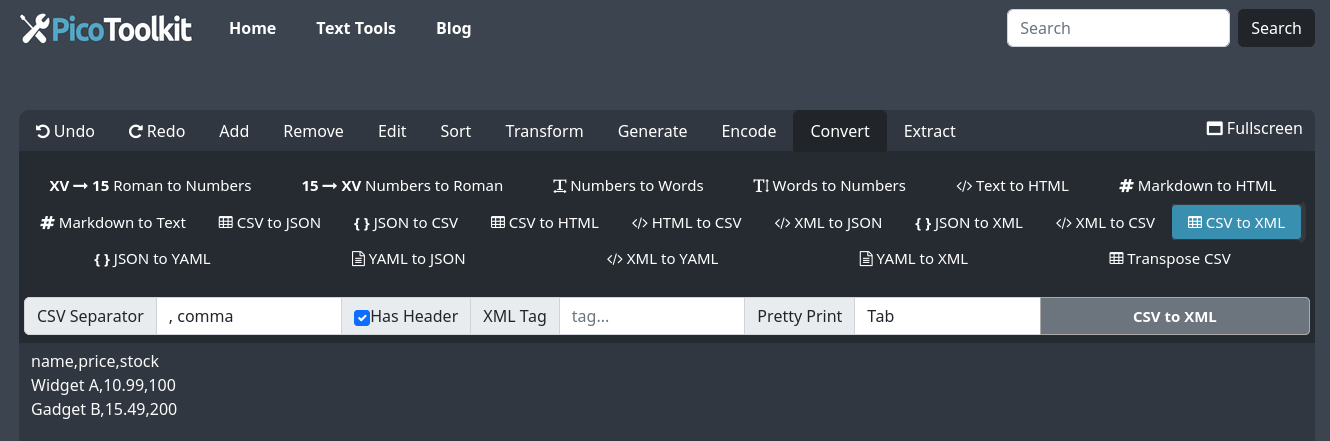
- Paste your CSV into the input area or upload a file.
- Choose a custom separator (comma, semicolon, pipe, tab, or a single character).
- Toggle "Input has header" — when checked the first row becomes XML tag names; when unchecked the converter uses generic column names (col1, col2, ...).
- Set "XML tag" — the element name in which each row's columns will be placed. If empty, <row> is used.
- Pick Pretty Print: no (compact), tab, 2 spaces (default), or 4 spaces.
- Optional: set a custom root tag to wrap all rows.
- Click Convert → copy or download the generated XML. Conversion runs in your browser and is limited by your browser's memory.
Common use cases
- Migrate spreadsheet data into XML-based systems and APIs.
- Create configuration files or data feeds that expect XML input.
- Generate XML to import into content management systems, web services, or legacy apps.
- Quick inspection and transformation of CSV exports from databases or reporting tools.
Examples
Example A — CSV with header, comma separator, default row tag (<row>) and 2-space pretty print:
CSV input:
id,name,active
1,acme,true
2,foo,false

XML output (root tag "dataset"):
<dataset>
  <row>
    <id>1</id>
    <name>acme</name>
    <active>true</active>
  </row>
  <row>
    <id>2</id>
    <name>foo</name>
    <active>false</active>
  </row>
</dataset>
Example B — CSV without header (checkbox unchecked). Converter uses generic column names (col1, col2):
CSV input:
alice,30
bob,25

XML output:
<dataset>
  <row>
    <col1>alice</col1>
    <col2>30</col2>
  </row>
  <row>
    <col1>bob</col1>
    <col2>25</col2>
  </row>
</dataset>
Example C — Custom separator (semicolon) and custom row tag (<entry>), pretty-print = 4 spaces:
CSV input (separator=';'):
code;qty;price
A1;10;1.5
B2;5;2.0

XML output:
<items>
    <entry>
        <code>A1</code>
        <qty>10</qty>
        <price>1.5</price>
    </entry>
    <entry>
        <code>B2</code>
        <qty>5</qty>
        <price>2.0</price>
    </entry>
</items>
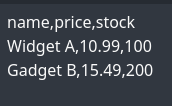
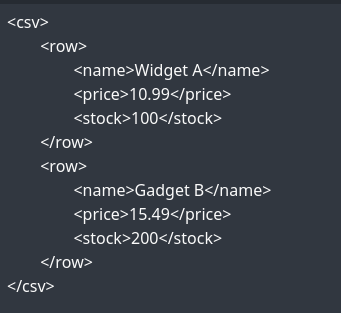
Visual examples:
Tips & edge cases
- Delimiter detection: the tool can auto-detect common separators, but specify a custom separator when detection is ambiguous.
- Header sanitization: header values are converted to safe XML tag names (spaces and illegal characters are sanitized or replaced).
- Duplicate column names: avoid duplicate headers — they may be rewritten or merged depending on browser parsing. Prefer unique column names.
- Empty values produce empty elements (<tag/> or <tag></tag> depending on pretty-print mode).
- Large files: conversion runs locally in your browser. Very large CSV files may fail due to browser memory or processing limits—split the file or use a server-side solution.
- Encoding: ensure your CSV is UTF-8 for correct character handling in XML.
Works Best With Other PicoToolkit Converters
The CSV to XML Converter is an integral part of the PicoToolkit suite, which includes a range of other converters like XML to CSV, CSV to HTML table, HTML table to CSV, JSON to CSV, and Transpose CSV. Leveraging these tools together allows for unparalleled flexibility in data conversion, enabling users to easily manipulate and transition their data across various formats to meet diverse project requirements.
Related tools
FAQ
How do I set a custom root or row tag?
Use the "Root tag" field to wrap all rows with a parent element (for example, <dataset>). Use the "XML tag" field to name each row element (default is <row> if left empty).
Which separators are supported?
Common separators (comma, semicolon, pipe, tab) are supported. You can also enter a single custom character. If auto-detection fails, select the separator manually.
What happens if my CSV has no header?
If "Input has header" is unchecked, the converter generates generic column names (col1, col2, …). You can rename them later in your editor or add a header row before conversion.
Are there file size limits?
Conversion runs in the browser and is limited by your browser's memory and CPU. Very large files may fail—split large CSVs or use a server-side approach for massive datasets.