
CSV to HTML Converter
Table of Contents
- Streamline CSV or TSV into clean HTML tables with PicoToolkit
- How to use
- Conversion rules (what to expect)
- Why PicoToolkit HTML is better
- Examples (copyable)
- 1) Basic CSV with header → <thead> + pretty print (2 spaces)
- 2) Quoted field with commas (compact output)
- 3) TSV example (tab separator)
- Common use cases
- Tips & edge cases
- Related tools
- FAQ
- Can I upload a file?
- Does the tool preserve header rows?
- How are quoted fields handled?
- Can I get a compact output for embedding?
Streamline CSV or TSV into clean HTML tables with PicoToolkit
Streamline CSV or TSV into clean HTML tables with PicoToolkit
Convert CSV or TSV data into minimal, copyable HTML tables. Paste your data, choose separators and formatting options, convert, then copy the produced HTML into your page or CMS.
How to use
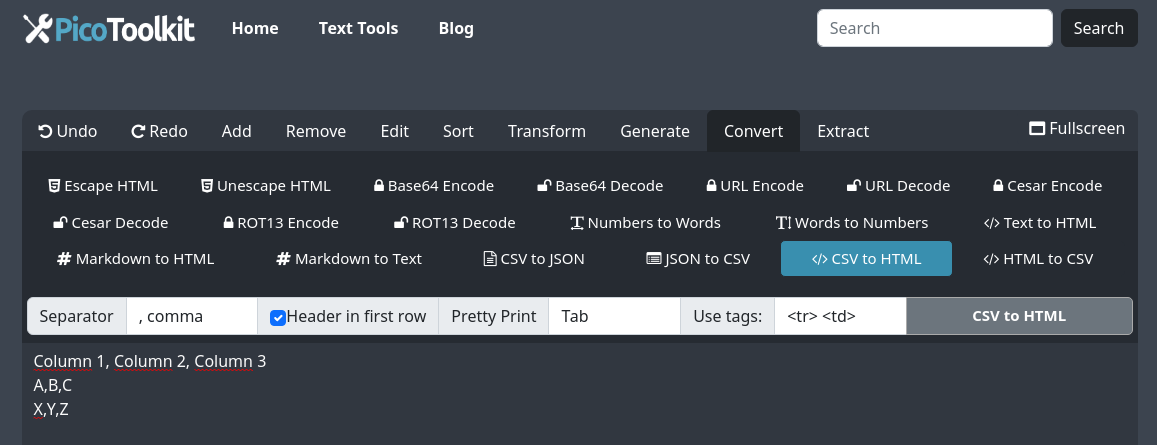
- Paste your CSV/TSV into the input area (copy & paste only — no file upload).
- Select the column separator (comma, semicolon, pipe, space, tab).
- Toggle “Header in first row” to treat the first row as a header (outputs <thead> with <th> when enabled).
- Pick pretty-printing: None (compact), Tab, 2 spaces, or 4 spaces — controls indentation and newlines in the output.
- Choose tag behavior: output only <tr>/<td> or include <thead>/<th> and <tbody> (user decides via the header checkbox and tag options).
- Click Convert and use the Copy button to take the HTML to your clipboard.
Conversion rules (what to expect)
- If “Header in first row” is checked, the first CSV row is placed into <thead> and its cells become <th> elements; otherwise all rows become <tr> with <td>.
- Separator selection determines how columns are split (comma, tab, semicolon, pipe, space). Choose the value that matches your file.
- Quoted fields are preserved as single cell values (commas inside quotes do not split cells).
- Empty CSV cells produce empty table cells in HTML.
- Pretty-print controls only formatting (indentation and line breaks) of the resulting HTML; it does not change table structure or content.
- Tag options let you include or omit semantic wrappers (<thead>, <tbody>, <th>) depending on your target usage.
Why PicoToolkit HTML is better
The two images below contrast typical WYSIWYG/spreadsheet HTML exports and the clean HTML produced by PicoToolkit. They illustrate the practical advantages of minimal, semantic markup.


- Messy export (left): spreadsheets and WYSIWYG editors often add inline styles, classes and unnecessary attributes that bloat HTML and complicate styling.
- PicoToolkit output (right): only semantic table tags are included (<table>, <thead>, <tbody>, <tr>, <th>, <td>). No inline styles or extra attributes.
- Benefits: smaller payloads, easier global styling via CSS, simpler maintenance, and fewer accessibility surprises.
- Practical result: paste-ready HTML you can style or inject into templates without manual cleanup.
Examples (copyable)
1) Basic CSV with header → <thead> + pretty print (2 spaces)
Input CSV:
name,age,city
Alice,30,Seattle
Bob,25,Portland

Output HTML (pretty, 2 spaces):
<table>
  <thead>
    <tr>
      <th>name</th>
      <th>age</th>
      <th>city</th>
    </tr>
  </thead>
  <tbody>
    <tr>
      <td>Alice</td>
      <td>30</td>
      <td>Seattle</td>
    </tr>
    <tr>
      <td>Bob</td>
      <td>25</td>
      <td>Portland</td>
    </tr>
  </tbody>
</table>
2) Quoted field with commas (compact output)
Input CSV:
id,desc
1,"Big, large, expensive"
2,"Small, cheap"

Output HTML (compact):
<table><tr><th>id</th><th>desc</th></tr><tr><td>1</td><td>Big, large, expensive</td></tr><tr><td>2</td><td>Small, cheap</td></tr></table>
3) TSV example (tab separator)
Input TSV:
product	price	stock
Pen	1.20	100
Notebook	2.50	50

Output HTML (pretty, tab):
<table>
	<thead>
		<tr>
			<th>product</th>
			<th>price</th>
			<th>stock</th>
		</tr>
	</thead>
	<tbody>
		<tr>
			<td>Pen</td>
			<td>1.20</td>
			<td>100</td>
		</tr>
	</tbody>
</table>
Common use cases
- Embed results or reports into a blog or CMS with minimal HTML cleanup.
- Convert exported spreadsheet data into lightweight tables for documentation.
- Generate copy-paste-ready HTML for email templates, static pages, or demos.
Tips & edge cases
- If your CSV contains a header row and you want semantic markup, enable “Header in first row” to get <thead> and <th>.
- Choose the exact separator used in your source file—incorrect separators cause misaligned columns.
- For compact embedding (no extra whitespace), choose “No” pretty print. For readable source, choose 2 or 4 spaces or Tab.
- If you want the table to include classes or inline styles, convert first and then add classes manually—this tool produces clean HTML without extra styles.
Related tools
FAQ
Can I upload a file?
No — the converter works via copy & paste into the input area only.
Does the tool preserve header rows?
Yes. Enable the “Header in first row” checkbox to get a <thead> block and <th> cells. If disabled, the header row becomes a normal <tr> with <td>.
How are quoted fields handled?
Quoted fields are treated as single cell values; embedded separators inside quotes do not split the column.
Can I get a compact output for embedding?
Yes — choose “No” in pretty-printing to produce compact HTML with minimal whitespace suitable for embedding in templates.