
HTML to CSV Converter
Table of Contents
- HTML to CSV — convert HTML tables to CSV or TSV online
- How to use
- Parsing rules — what the tool does
- Examples (copyable)
- Tips & edge cases
- Related tools
- FAQ
- Will colspan or rowspan produce correct CSV columns?
- What happens to links and HTML inside cells?
- How are separators, quotes and new lines handled?
- Are there input size limits?
Convert HTML tables to CSV or TSV — HTML to CSV Converter
HTML to CSV — convert HTML tables to CSV or TSV online
PicoToolkit converts HTML tables into CSV or TSV so you can import data into Excel, Google Sheets, or analysis tools without manual retyping. The converter strips HTML inside cells and produces a clean, separated-file output. Use custom separators and download-ready CSVs.
How to use
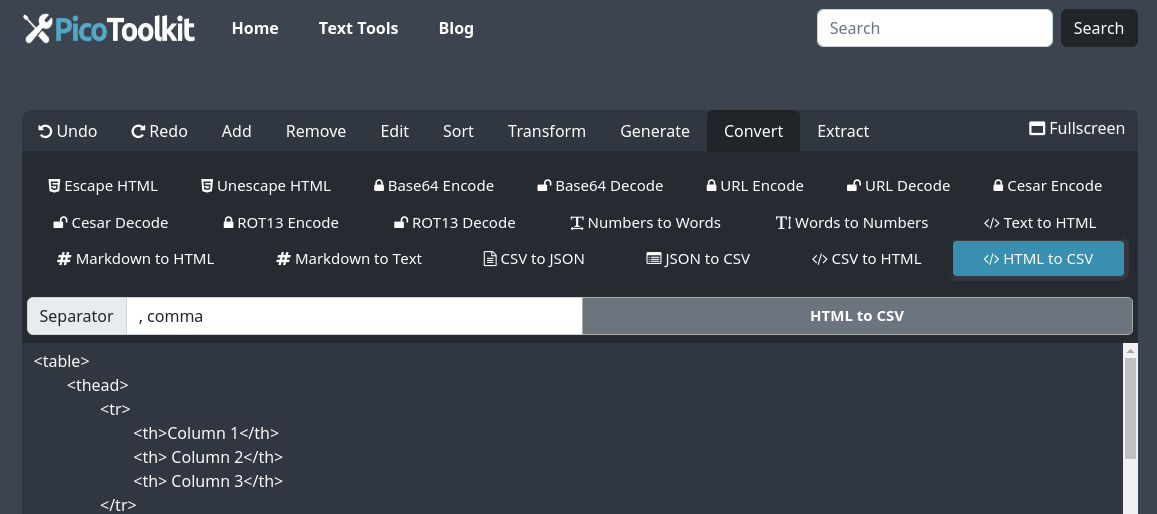
Open the menu: Convert → HTML to CSV. An extra toolbar appears where you can pick a separator (comma, semicolon, tab, pipe) and other options; then click HTML to CSV.
Parsing rules — what the tool does
- Colspan/rowspan: not supported. Cells using colspan or rowspan are not expanded. Spanned cell text appears where it sits in the source; adjacent rows may have fewer columns in the CSV.
- Inner HTML: stripped automatically. Only visible/text content remains (e.g.,
<b>Bold</b>→ "Bold",<a>text becomes the link text). - Headers: header cells (
<th>) are preserved as text and appear in the CSV in the same row order. - Escaping: fields that contain the chosen separator, quotes, or newlines are quoted; internal quotes are doubled (standard CSV escaping).
- Malformed or nested tables: the parser attempts a best-effort conversion. Nested tables are flattened to the containing cell’s text; deeply malformed markup may yield imperfect rows — see examples below.
- Limits: no hard server-side limit shown — performance depends on your browser and device memory.
Examples (copyable)
Example 1 — Simple table with header → clean CSV
Input HTML:
<table>
  <thead>
    <tr><th>Name</th><th>Age</th><th>City</th></tr>
  </thead>
  <tbody>
    <tr><td>Alice</td><td>30</td><td>London</td></tr>
    <tr><td>Bob</td><td>25</td><td>Berlin</td></tr>
  </tbody>
</table>

Output CSV (comma):
Name,Age,City
Alice,30,London
Bob,25,Berlin
Example 2 — Cells with HTML, links and HTML entities (entities preserved)
Input HTML:
<table>
<tr><th>Product</th><th>Info</th></tr>
<tr>
<td>Widget <b>XL</b></td>
<td><a href="https://example.com/1">View</a> — 10% off</td>
</tr>
<tr>
<td>Code: <div>example</div> </td>
<td>Notes</td>
</tr>
</table>
Output CSV:
Product,Info
"Widget XL","View — 10% off"
"Code: <div>example</div>",Notes
Notes:
- Tags like <b> are stripped so
Widget <b>XL</b>becomes "Widget XL". - HTML entities (e.g.,
<div>) are preserved as literal text in the output. In the example the entity sequence remains <div> and appears in the CSV as <div>. - To decode entities before conversion, run your input through Unescape HTML. To extract link URLs, use URL Extractor.
Example 3 — rowspan/colspan (unsupported; demonstrates limitation)
Input HTML:
<table>
  <tr><td rowspan="2">Group A</td><td>Item 1</td></tr>
  <tr><td>Item 2</td></tr>
</table>

Possible Output CSV:
Group A,Item 1
Item 2

Explanation: the rowspan cell is not expanded to the second row; the second CSV row has fewer columns. We recommend removing spans or expanding them before converting for strict column alignment.
Example 4 — nested table and malformed HTML (best-effort)
Input HTML:
<table>
  <tr><th>ID</th><th>Details</th></tr>
  <tr>
    <td>1</td>
    <td>
      <table><tr><td>Color: Red</td></tr><tr><td>Size: M</td></tr></table>
    </td>
  </tr>
</table>

Output CSV:
ID,Details
1,"Color: Red Size: M"

Note: nested table cells are flattened to their visible text, separated by spaces.
Tips & edge cases
- If you want to preserve link URLs, extract them first with URL Extractor or run the HTML through a pre-processing step.
- To remove tags before conversion, try HTML stripper and then convert the cleaned table.
- Use Find the longest line or Character Counter if you need to size columns for a fixed-width export.
- For large tables, consider splitting input into smaller chunks if your browser slows down.
Related tools
- CSV to HTML Converter — convert CSV back into an HTML table.
- Email Extractor — pull emails from converted text.
- URL Extractor — find and export URLs from cell content.
- Pattern Extractor — extract values with regex after conversion.
- HTML stripper — remove tags before converting (useful for complex markup).
FAQ
Will colspan or rowspan produce correct CSV columns?
No. Colspan and rowspan are not supported. The converter places the cell text where it appears, but it does not expand spanned cells into multiple CSV columns or rows. For strict column alignment, remove or expand spans before conversion.
What happens to links and HTML inside cells?
Inner HTML is stripped automatically. Visible text is preserved; anchor tags yield the link text, not the href. To extract URLs themselves, run the output through the URL Extractor.
How are separators, quotes and new lines handled?
Fields that contain the chosen separator, quotes, or newlines are enclosed in double quotes; internal double quotes are doubled. This follows standard CSV escaping so the result imports cleanly into spreadsheet software.
Are there input size limits?
There is no explicit server-side limit shown. Processing capacity depends on your browser and device memory. For very large tables, split the input or use a desktop tool for heavy-duty conversions.