
CSV Transposer
Table of Contents
- Transpose CSV — flip rows and columns online
- How to use
- Parsing rules — what the tool does
- Examples (copy/paste)
- Tips & edge cases
- Related tools
- FAQ
- Does the tool treat the first row as a header?
- How do I handle different separators (semicolon, tab)?
- What happens with rows that have different numbers of fields?
- Can I transpose files or only pasted text?
Transpose CSV — flip rows and columns online
Transpose CSV — flip rows and columns online
PicoToolkit transposes CSV/TSV data so rows become columns and columns become rows. Paste your data, choose the separator, and get a copyable transposed CSV ready for analysis or presentation. Each row is treated equally (no special header handling).
How to use
- Paste your CSV/TSV into the editor.
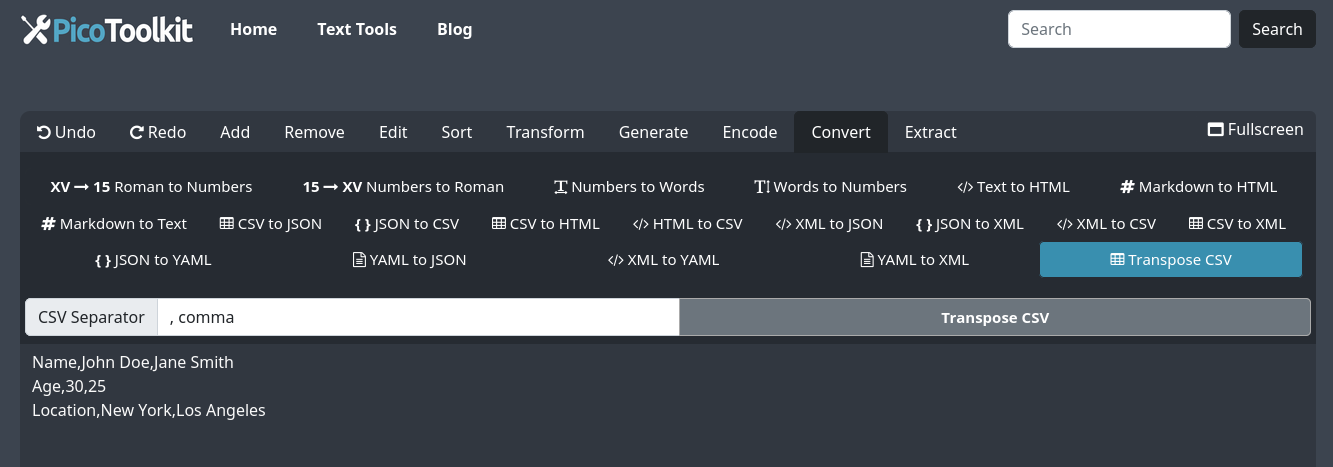
- Open the menu: Convert → Transpose CSV.
- The tool asks for the field separator (comma, semicolon, tab, pipe, or custom). Pick the correct one and apply.
- Copy the transposed output or run follow-up transformations.
Parsing rules — what the tool does
- Separator: the tool requires you to select the separator. It uses that separator for both parsing and output.
- Row treatment: every row is treated the same — there is no automatic header promotion or special-case first row.
- Quoted fields: quoted fields are preserved as single cells. If a field contains the chosen separator or a newline, the output field is quoted as needed.
- Uneven rows: rows with fewer fields produce empty cells in the transposed output (columns are padded as necessary).
- Encoding: input is treated as UTF‑8. The tool does not re-encode or alter cell content beyond escaping/quoting for the output separator.
- Limits: processing is client-side; very large tables may be slow depending on browser/device memory.
Examples (copy/paste)
Example 1 — simple comma CSV
Input:
Name,Age,Location
John Doe,30,New York
Jane Smith,25,Los Angeles

Output (transposed):
Name,John Doe,Jane Smith
Age,30,25
Location,New York,Los Angeles
Example 2 — quoted fields with commas
Input:
Name,Note
"Smith, John","Good, reliable"
"Lee, Ann","Prefers email"

Output:
Name,"Smith, John","Lee, Ann"
Note,"Good, reliable","Prefers email"
Example 3 — tab-separated (TSV)
Input (tabs shown as ␉):
Name␉Q1␉Q2
A␉10␉20
B␉30␉40

Output (choose Tab as separator):
Name␉A␉B
Q1␉10␉30
Q2␉20␉40
Example 4 — uneven rows (short row)
Input:
A,B,C
1,2,3
4,5

Output:
A,1,4
B,2,5
C,3,
Tips & edge cases
- If output looks misaligned, verify you chose the correct separator or preview the input with CSV to HTML Converter.
- Run Remove Empty Lines and Trim first to eliminate accidental blank rows or trailing spaces that produce extra empty columns.
- For CSVs with complex quoting/newlines inside cells, the tool preserves quoted content as single cells; however, verify the result with CSV to HTML Converter if accuracy matters.
- Large tables are processed in-browser — split very large inputs if your browser becomes slow.
Related tools
- CSV to HTML Converter — preview CSV as an HTML table before transposing.
- HTML Table to CSV — extract tables from HTML to CSV first.
- CSV to JSON — convert to JSON for programmatic manipulation.
- JSON to CSV — convert back when needed.
- XML to CSV — convert XML before transposing.
- Remove Empty Lines, Trim — clean input before conversion.
FAQ
Does the tool treat the first row as a header?
No. Every row is transposed equally. If you need header-specific behavior, rearrange rows before using the transposer.
How do I handle different separators (semicolon, tab)?
The tool asks you to choose the separator. Pick comma, semicolon, tab, pipe, or enter a custom character so parsing and output use the same separator.
What happens with rows that have different numbers of fields?
Shorter rows generate empty output cells where data is missing. The transposed output pads columns as needed so the matrix stays rectangular.
Can I transpose files or only pasted text?
Paste your CSV/TSV data into the editor; file upload is not required. For very large files, use a local tool or split the input into smaller chunks before pasting.