
Random Password Generator
Table of Contents
- Random Password Generator — bulk, customizable password lists
- How to use
- What the tool does — behavior notes
- Entropy & strength guidance
- Examples (copyable)
- Tips & edge cases
- Security & privacy
- Related tools
- FAQ
- Can I exclude ambiguous characters (0/O, l/1)?
- How do I export the list?
- Are generated passwords logged or stored?
- What is the maximum number of passwords I can generate at once?
Random Password Generator — bulk, customizable password lists
Random Password Generator — bulk, customizable password lists
Working on: random-password-generator
PicoToolkit generates lists of random passwords you can copy or export. Choose how many passwords, set min/max length, and pick character sets (letters, numbers, specials). Use the list for provisioning, testing, or seeding a password manager — see the security guidance below.
How to use
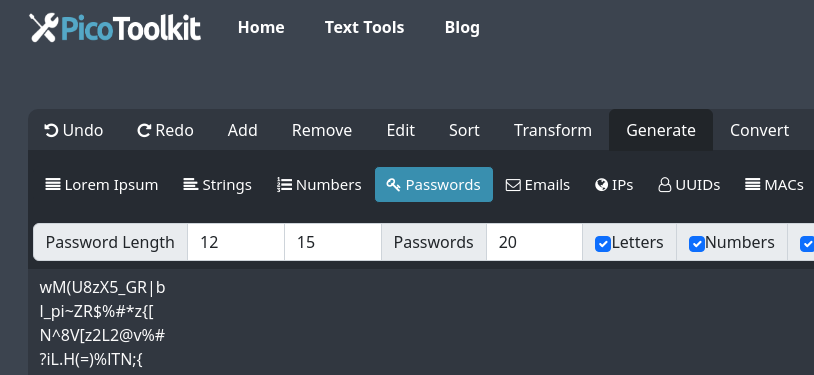
- Open the tool: Generate → Passwords. An extra toolbar appears.
- Set the number of passwords to generate (up to 2,000).
- Set minimum and maximum length for generated passwords.
- Pick character sets (checkboxes): letters (A–Z, a–z), numbers (0–9), specials (printable punctuation).
- Click Generate. Copy the list or export if the UI provides an export button.
What the tool does — behavior notes
- Output format: one password per line by default (copyable). Bulk export options depend on the UI.
- Character sets combine to form the pool used for generation. If only letters are checked, passwords use letters only; checking numbers and/or specials expands the pool.
- Number of passwords and length are enforced per your settings (tool supports up to 2,000 items in one run).
- Important: this generator does NOT use a cryptographically secure RNG. Treat produced passwords accordingly (see Security section).
Entropy & strength guidance
Each character adds roughly log2(charset_size) bits of entropy. Typical examples (approximate):
- Letters only (52 chars): ~5.7 bits per character. 12 chars ≈ 68 bits.
- Letters + numbers (62 chars): ~6.0 bits per character. 12 chars ≈ 72 bits.
- Letters + numbers + specials (~94 chars): ~6.6 bits per character. 12 chars ≈ 79 bits; 16 chars ≈ 105 bits.
Recommended minimums (general guidance): use at least 12 characters for normal accounts and 16+ for high-value accounts. These are approximate — longer is safer.
Examples (copyable)
Example settings: 5 passwords, length 12, letters+numbers+specials
Output (sample):
q9#T8vP2m!Lz
Nf3@rQ7yB0hK
zP2$kLm8Vx1Q
tG6%wR4sH9aJ
B8&nU3pQ5yMz
Example settings: 3 passwords, length 16, letters+numbers
Output (sample):
aK3bT9mZ6qR1pL4s
qP7zV2nY8cH5mS0d
Lr4tF9wB1kN6xQ3v
Note: the actual strings above are illustrative samples. Real output varies per run.
Tips & edge cases
- For password managers: copy the generated list into your manager rather than storing in plain files or emails.
- If you need reproducible lists (not recommended for security), use a dedicated script — this tool produces random lists per session.
- If you generate many passwords, remove duplicates with Remove Duplicates before importing into other systems.
- Use Add prefix or suffix to attach a tag (e.g., account name) to each password before export if required for provisioning workflows.
Security & privacy
- This generator does not use a cryptographically secure RNG. Do not rely on it for generating master passwords, high-value account credentials, or other secrets that must resist targeted attacks.
- Prefer using a trusted password manager or a system that uses a secure RNG (Web Crypto API or equivalent) for sensitive credentials.
- Do not generate passwords on shared/public devices. Immediately transfer generated passwords to a secure vault and delete transient copies.
- Check PicoToolkit’s privacy policy or tool UI for information about logging or storage if you need to confirm whether generated data is retained server-side.
Related tools
- Random String Generator
- Random Email Generator
- Random UUID Generator
- Random IP Generator
- Random Date Generator
- Realistic Random Names Generator
- Remove Duplicates — clean lists before importing.
FAQ
Can I exclude ambiguous characters (0/O, l/1)?
The UI offers basic character-set checkboxes (letters, numbers, specials). If you need to exclude specific characters, use Find and Replace after generation to remove or replace them.
How do I export the list?
Copy from the output area (one password per line). If the UI provides an export button, use it; otherwise paste into your password manager or a secure file and delete temporary copies.
Are generated passwords logged or stored?
Check the PicoToolkit privacy policy or the tool UI for any logging statements. As a best practice, assume transient copies may exist in browser memory; move passwords to a secure manager and clear the page when done.
What is the maximum number of passwords I can generate at once?
The UI supports bulk generation up to 2,000 passwords in one run. Very large outputs may slow your browser.