
StrPad Online
Pad Text - Add characters to each line to match the target length.
Pad text — add characters to each line to match a target length
StrPad on PicoToolkit pads each line of your text to a fixed length (left, right, or both). Use it to align columns, zero-pad IDs, or normalize filenames without writing code.
How to use
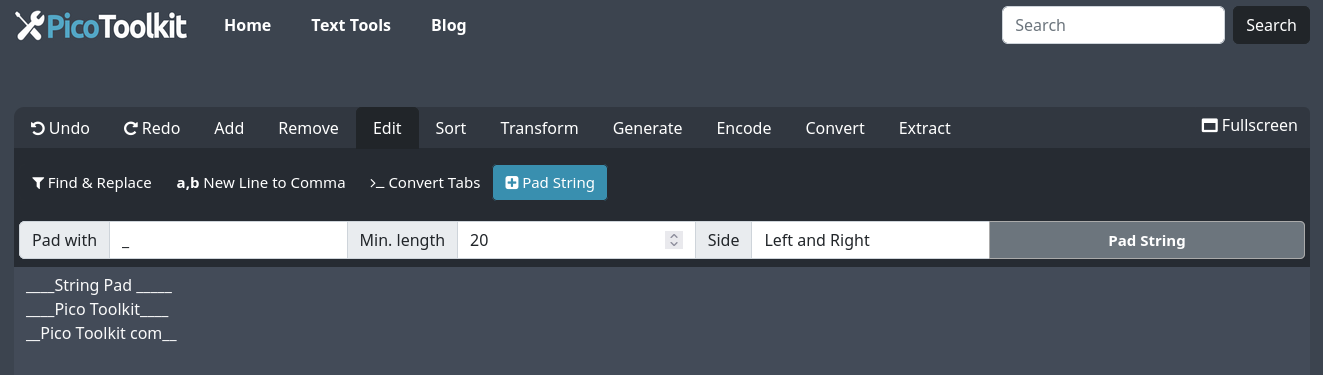
- Paste your text into the input area.
- Open the menu: Edit → Pad String.
- Enter the character(s) to use for padding (space, dot, 0, etc.). Multi-character pads repeat as needed.
- Set the target length (number of characters per line).
- Choose the side: left, right, or both.
- Click Pad String to apply padding.
- Behavior for longer lines: lines that are already longer than (or equal to) the target length are left unchanged — the tool does not truncate.
- Input limits: no fixed size limit shown — the tool can handle as much text as your browser and device memory permit.
- Empty lines: preserved unless you remove them before padding.
Common use cases
- Zero-pad numeric IDs (invoice numbers, order IDs) to a uniform width for consistent sorting and legacy system imports.
- Prepare fixed-width exports or plain-text reports where columns must line up in a monospaced viewer.
- Normalize product SKUs or filenames to a fixed length for catalog imports and automated matching.
- Center or visually align short labels in documentation or CLI output using both-side padding.
Examples
1) Left zero-pad order IDs to 10 digits (common for CSV imports):
Input:
12
305
47890

Pad: "0", target length: 10, side: left
Output:
0000000012
0000000305
0000047890
2) Right-pad product SKUs to 12 characters for a fixed-width export (use spaces in real exports; dots shown here to visualize):
Input:
SKU123
X9
LONGSKU12345

Pad: " ", target length: 12, side: right
Output:
"SKU123     "
"X9         "
"LONGSKU12345"
Note: lines already >= target length (like LONGSKU12345) are left unchanged.
3) Center short labels inside a 20-character column (both-side padding):
Input:
Apple
Banana
Kiwi

Pad: " ", target length: 20, side: both
Output:
"       Apple        "
"       Banana       "
"        Kiwi        "
4) Multi-character pad string and truncation of the final repeat:
Input:
A
BC

Pad: "-+", target length: 5, side: right
Output:
A-+-+
BC-+-
The pad string repeats until the target length is reached; the last repetition may be cut to fit exactly.
Tips & edge cases
- If you don't want leading/trailing spaces counted, run Trim first.
- To pick a target length based on your data, use Find the longest line or Character Counter.
- Multi-character pad strings repeat until the target length is reached; the last repetition may be truncated to fit.
- Combine tools: add line numbers with Add Line Numbers then pad IDs, or add prefixes/suffixes with Add prefix or suffix.
- Large inputs depend on browser memory — split very large files if the browser becomes slow.
Related tools
- Add Line Numbers — automatically number each line (kept from original page).
- Add Prefix or Suffix — append or prepend text to each line (kept from original page).
- Find and Replace — search and replace strings or patterns (kept from original page).
- Find the longest line — choose a sensible target length.
- Trim — remove unwanted leading/trailing whitespace before padding.
- Add prefix or suffix — useful when you need consistent endings instead of padding.
- Character Counter — verify lengths before and after padding.
FAQ
Does the tool truncate longer lines?
No. Lines that are already equal to or longer than the chosen target length are left unchanged. If you need truncation, trim or manually shorten lines before using StrPad.
Can I use multi-character pad strings?
Yes. The pad string repeats to fill the needed characters; the final repeat may be cut off to match the exact target length.
Are there input size limits?
There is no explicit server-side limit shown. The tool will process as much text as your browser and device can handle. For very large files, split the input or use a desktop script to avoid browser memory issues.