
Camel Case Converter
Table of Contents
- Convert to camelCase — fast, predictable conversion
- How to use
- Parsing rules — exact behaviour
- Examples (copyable)
- Tips & edge cases
- Related tools
- FAQ
- Will acronyms stay uppercase (e.g., "user ID")?
- What exactly happens to punctuation, underscores and hyphens?
- Are non‑ASCII characters preserved?
- Can I convert JSON keys in bulk?
Convert to camelCase — fast, predictable conversion
Convert to camelCase — fast, predictable conversion
Working on: camel-case
PicoToolkit converts any text into lowerCamelCase. The converter treats every character consistently: non-alphanumeric characters act as separators and are removed, words are lowercased then glued together with each internal word capitalized. Use this for variable names, JSON keys, or API fields.
How to use
- Paste your text into the editor.
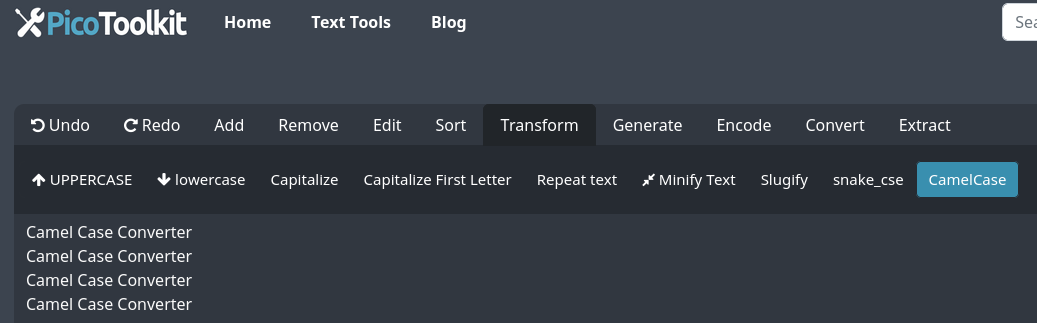
- Open the menu: Transform → Camel Case.
- The tool converts the text to lowerCamelCase and shows the result for copying.
Parsing rules — exact behaviour
- Non-alphanumeric characters: any character that is not a Unicode letter or digit is treated as a separator and removed in the output (spaces, punctuation, underscores, hyphens, etc.).
- Word boundaries: sequences of non-alphanumeric characters and whitespace define word boundaries. Each token between boundaries becomes a word in the result.
- Casing: all words are lowercased first. The first word remains entirely lowercase; each following word is capitalized (first letter uppercase, remainder lowercase).
- Acronyms / existing capitalization: no special treatment — every character is processed the same, so "ID" becomes "id" and "user ID" → "userId".
- Numbers: digits are preserved in place and treated like word characters, e.g., "version 2 update" → "version2Update".
- Unicode letters: Unicode letters are preserved and lowercased/uppercased using Unicode case folding (diacritics remain unless you remove them separately).
- No PascalCase option: the tool produces lowerCamelCase only (no UpperCamel / PascalCase variant available).
Examples (copyable)
Example 1 — trimming and spaces
Input:
  hello   world!
Output:
helloWorld
Example 2 — acronyms and capitals
Input:
user ID
Output:
userId
Example 3 — mixed separators
Input:
convert_to-camel.case
Output:
convertToCamelCase
Example 4 — numbers included
Input:
version 2 update
Output:
version2Update
Example 5 — Unicode letters (diacritics removed before conversion)
Input:
naïve café
Output:
naiveCafe

Note: the ASCII result shown above ("naiveCafe") requires removing accents before conversion. To get this output, run Remove Diacritics first, then convert to camelCase. By default the camel-case tool preserves diacritics.
Tips & edge cases
- If you want ASCII-only identifiers, run Remove Diacritics before conversion.
- To remove or tweak tokens (numbers, prefixes), use Find and Replace before or after conversion.
- Use Trim to remove surrounding whitespace before converting if needed.
- If your input already contains code-like tokens (dots, brackets), the converter will treat those as separators and strip them.
Related tools
FAQ
Will acronyms stay uppercase (e.g., "user ID")?
No. The tool treats every character the same and lowercases tokens before applying camel-casing rules. "user ID" becomes "userId".
What exactly happens to punctuation, underscores and hyphens?
They are treated as separators and removed. The words they separate are joined with camel-casing applied (for example, "hello_world" → "helloWorld").
Are non‑ASCII characters preserved?
Unicode letters are preserved and case-folded by default. If you prefer ASCII output, remove diacritics first using Remove Diacritics.
Can I convert JSON keys in bulk?
The tool converts plain text. For JSON keys, copy the keys into the editor, convert them, and then reapply to your JSON or use a script to do bulk key transforms.